What's New in Brandly: A Simpler Dashboard, List and Grid Template Views, and Sending Saved Items
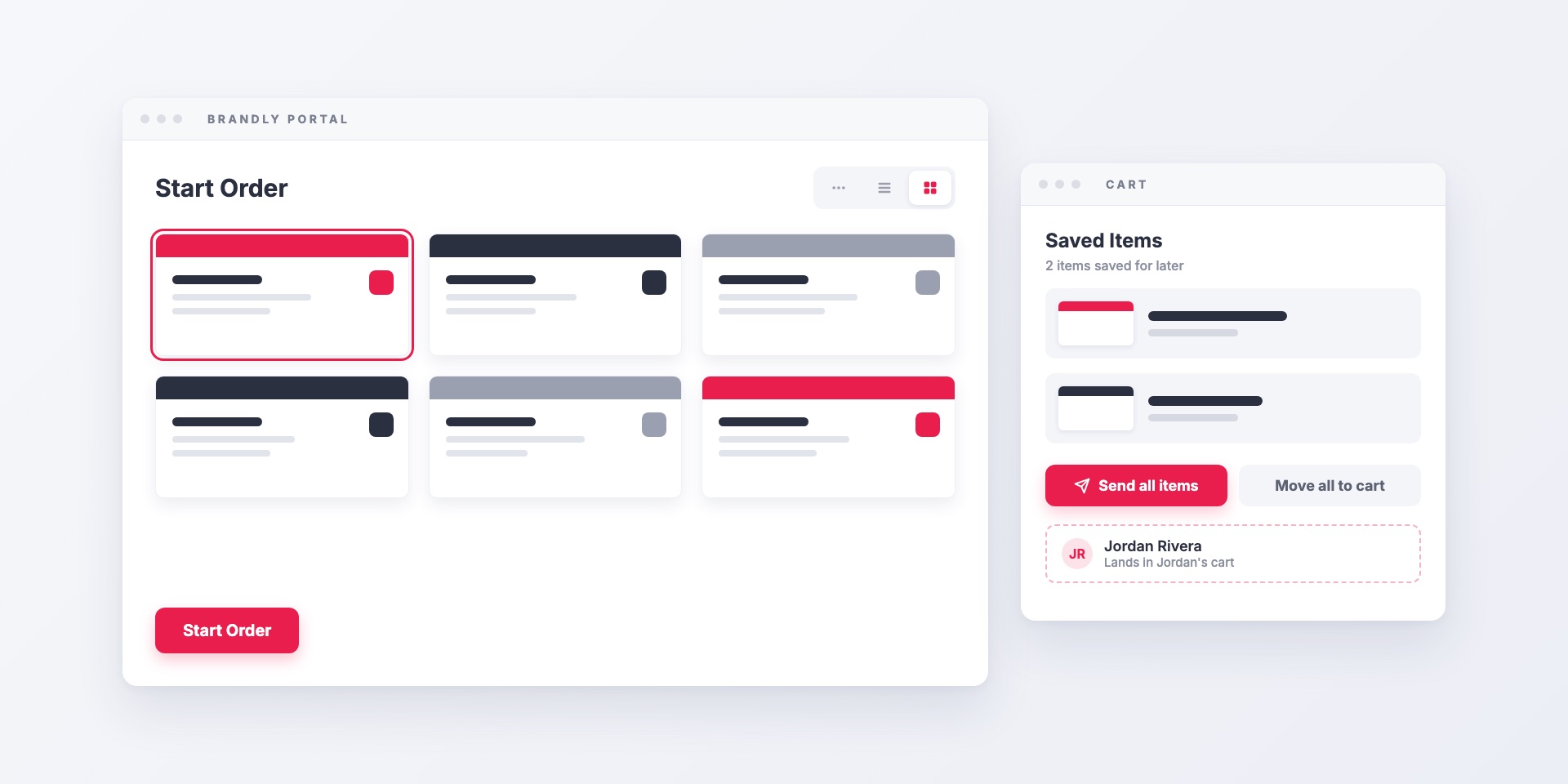
Here’s a roundup of recent changes to the Brandly portal. Each one is small, but together they make ordering faster, especially for teams with many designs or admins who order for other people.
A dashboard built around ordering
Most people open the portal to order business cards. The main dashboard now puts that first: your templates and the Start Order controls lead the page, and nothing else competes for the space.
New users don’t have to pick a design during setup anymore. They go straight to the dashboard, where the templates are already in front of them.
List and grid views for your templates
The single row of templates works for a few designs. With twenty, it doesn’t. Business card templates now have two more views, and you can switch between them with the buttons at the top of the dashboard:
- List is built for portals with many templates. You can search as you type, and templates are grouped under their sections.
- Grid shows every design at once, which is easier when people pick by eye.
- Row is still there if you prefer it.
Each person picks the view they like, and Brandly remembers it for them. A designer can keep the grid while an office manager uses the list, and nobody has to agree on a team-wide setting.
For admins: manage templates from the list
When an admin clicks make changes, the list view is also where templates get organized:
- Drag and drop to reorder templates and move them between sections.
- Double-click a name to rename it in place.
- Add sections to group designs, such as by brand, office or department.
Sections with no templates are hidden from your team. While you’re editing, they’re marked with an eye-slash so you can see what’s empty.
If you only have one template, the view buttons are hidden because there’s nothing to browse.
Send saved items to a teammate
Admins often set up an order for someone else, such as a new hire’s cards or a replacement badge, and that person needs to check out. Before, the order had to be re-created on their account. Now admins can hand it over.
- On a cart item, click Save for later. Saved items collect under Saved Items in your cart.
- Click Send all items and choose a teammate. You can search by name or email.
- Click Send. The items move out of your saved list and into your teammate’s account, with the designs intact.
Where the items land depends on the recipient’s cart:
- If their cart is empty, the items go straight into their cart, ready to check out.
- If their cart already has items, the items go to their Saved Items, so nothing they’re working on gets mixed up.
The confirmation tells you which happened. It includes a Send Email button with a pre-written message telling your teammate where to look.
Sending is for admins only. Everyone can still save items for later and use Move all to cart to bring them back.
A bigger cart preview
The cart now shows larger previews of each design. You can step through your items with next and previous buttons, so it’s easier to check every card before you order.
How to get these updates
If you don’t see them in your portal yet, a team admin can turn them on from Settings → Upgrades in the dashboard. Look for Update main dashboard and Improved layouts for templates. If you have more than four templates, the default view will change to list. Each person can switch it back.
Questions, or something you’d like to see next? Contact us.
Set Up Your Free Business Card Portal
Get Started