QR Code Business Cards That Save Straight to Contacts: Meet vCard+
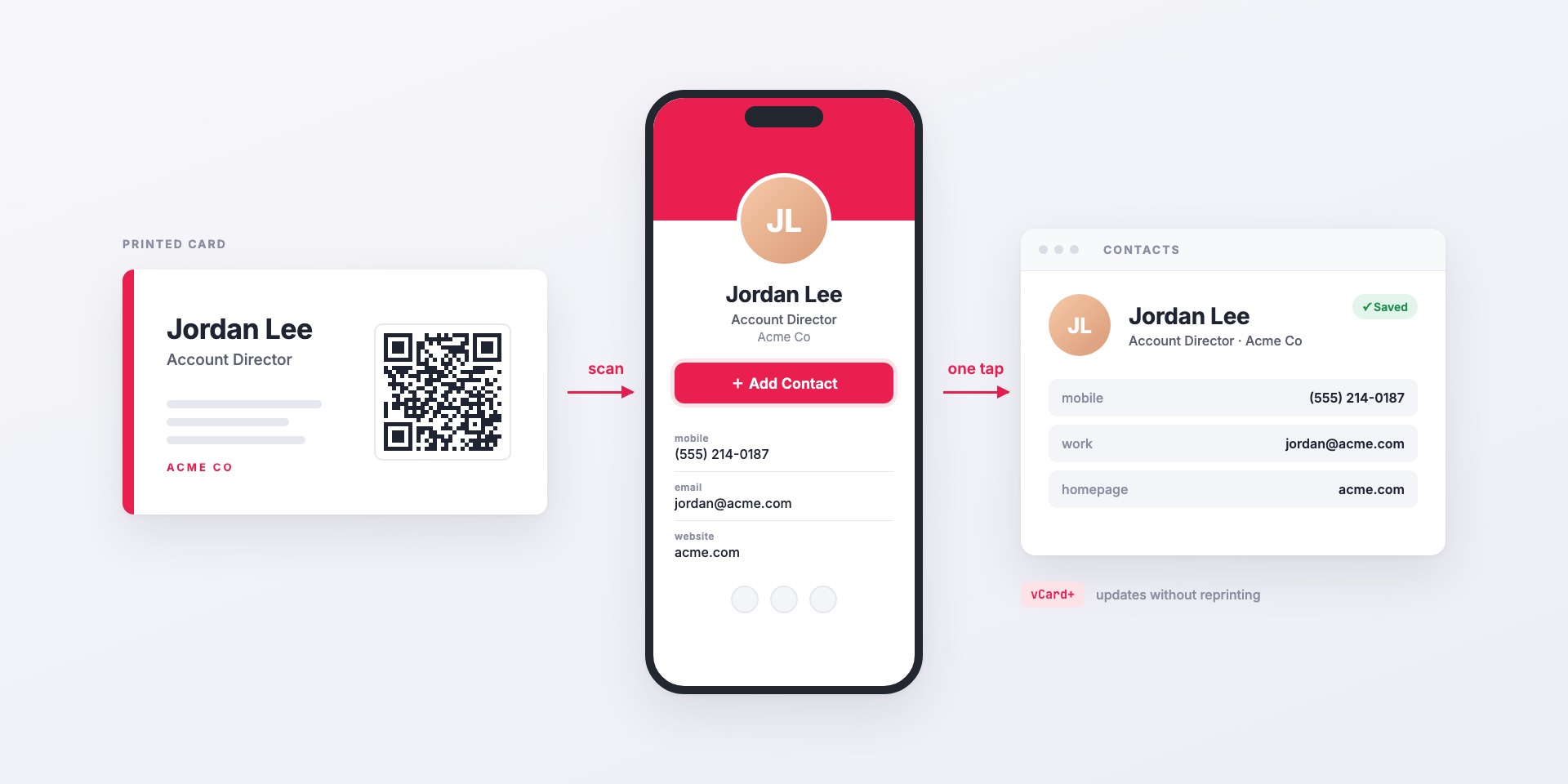
You hand someone your card, they scan the QR code, and a second later your contact page is open on their phone. They tap Add Contact, and your name, title, phone numbers, email and photo are saved. Nobody has to type anything.
That’s vCard+, Brandly’s digital contact page for printed business cards. This post covers what the person scanning sees, how employees keep their page current, and how admins add the QR code to card templates and manage pages for the whole team.
Quick takeaways
- One scan, one tap. The QR code opens a personal contact page, and Add Contact saves a contact file with the employee’s photo straight to the phone.
- No reprinting. The QR code points to a link Brandly controls, so when someone’s number or title changes, the printed card stays correct.
- Built into the card editor. Admins add a vCard+ QR code to a template once. Each employee’s card gets its own code when they order.
- Brand control for admins. Admins pick the page design, colors, logo and which social networks employees can show.
- Included in Business Plus, with a free preview so you can try it before you roll it out.
What someone sees when they scan your card
The QR code opens a mobile page made for one person. Depending on what they’ve filled in, it shows:
- Their photo, name, pronouns, title and company
- Up to four phone numbers, labelled mobile, direct, office or fax
- Email, website and office address
- Social links such as LinkedIn, Instagram or GitHub
- Your company logo and brand colors
At the top is an Add Contact button. It downloads a standard contact file (vCard) with the name, company, title, phone numbers, email, website, address and photo. On an iPhone, the contact card opens right away, ready to save. On Android, where Chrome saves the file without saying so, the page shows a short notice explaining how to open the downloaded contact.
The details on the page also work as links. Tapping the phone number starts a call, tapping the email starts a new message, and the website opens in the browser. Admins can also link the address to Google Maps and the logo to a page of their choice.
The person scanning doesn’t need an app or an account. Any phone camera can read the code.
Update your details without reprinting
A plain QR code holds the destination in the printed pattern itself, so if the destination changes, you have to reprint. A vCard+ QR code holds a short link instead, and Brandly points that link at the employee’s page.
So when someone gets promoted, changes their number or moves offices, they update their page and every card they’ve already handed out shows the new details. The page also fixes the problem of a typo on the card that you only notice after 500 have been printed. The printed card still shows the mistake, but the contact people save is correct.
How employees set up and edit their page
Employees don’t start from a blank page. The page fills in from their Brandly profile and your team settings: name, email, phone numbers, address, company name and website.
To make changes, they go to Dashboard → vCard+ → Your page and click Edit / Customize. There are two tabs:
- Info: photo, name, pronouns, company, title, phone numbers, email, website and address. Switches let them hide the photo, website or address.
- Social: their own handles for the networks your design allows.
Changes save as they go and are live right away. There’s no publish step and no reprint. The same page shows a link they can copy into an email signature or text message, and a QR code to preview the page on their own phone.
Adding the QR code to your card templates
The vCard+ QR code is part of the business card editor, so it sits on the card like the name or the logo.
- In the template editor, click Add QR Code in the toolbar and position it on the card.
- In the QR options, switch from Custom URL to vCard+.
- If your team has more than one vCard+ design, choose one under vCard+ Design, or leave it on Automatic to match the design to the card template by name.
- Save the template.
When an employee orders cards from that template, Brandly creates their vCard+ page at checkout and puts their own code on the card. If a manager or office admin orders on someone else’s behalf, the employee gets an email asking them to finish their profile. The order confirmation also has a Customize profile link.
Need to check the code will scan at a small size? Read how small QR codes can be on business cards.
What admins manage
Admins see two more sections under Dashboard → vCard+.
Team Designs
This is where the page’s look is set for everyone. Choose from three layouts, then set the details:
- Logo and its size
- Photo size, and whether a missing photo shows a placeholder or nothing
- Colors for the accent, background, text, labels and the Add Contact button
- Labels shown as words (“email:”) or icons
- Social icons, including the style (plain, square or circle), size and layout
- Links, which turn on or off tapping to call, email or open the address in maps, plus an optional logo link
If you have different divisions or brands, create a design for each one and assign it to the matching card template.
Social networks you control
On each design’s Social tab, choose how each network works:
- Allow Individual: employees add their own handle, such as their personal LinkedIn profile.
- Company Only: everyone shows the company account you enter, such as your Instagram.
- Hide or Forbid: keep a network off the page completely, even if an employee entered a handle for it.
Team Pages
Team Pages shows a live preview of every employee’s page in one grid, with a search box. Click any page to open it, copy its link or edit it for that employee. You can also get there from Team, where each member shows View vCard+ or Create vCard+.
Other QR codes for the team
Not every QR code needs to point to a person. For a trade show banner, a flyer or a product insert, admins can use the QR Codes page in the dashboard to make a code for any web address. Choose the color and background, then download it as SVG for print or PNG for the web.
Check Shorten to get a short link you can update later, so a code that’s already printed can point to a new page when the campaign changes. The QR Codes page isn’t turned on by default. Ask us to turn it on for your team.
Good to know
- Social links stay on the page. The saved contact file has the name, company, title, phone numbers, email, website, address and photo. Social links and pronouns appear on the page but aren’t in the file.
- There’s no scan tracking yet. vCard+ doesn’t count scans. Teams that want campaign numbers can use a shortened link from the QR Codes page together with their own analytics.
- It works with what you already print. vCard+ is a QR code on your existing cards, not a new card stock. Any template can have one.
How to set it up
- Start a preview. Go to Settings → Upgrades and choose Enable vCard+. A preview runs on any plan, so admins can set up a design and try their own page first.
- Design the page. Under Dashboard → vCard+ → Team Designs, pick a layout and set your logo, colors and social networks.
- Add the QR code to your templates as described above.
- Roll it out. Under Dashboard → vCard+, click Complete Set Up. This needs Business Plus. From then on, employees see the vCard+ tab, and each new order gets a personal QR code.
What it costs
vCard+ is part of Business Plus, which is $99 a year per team and includes 50 vCard+ seats. After that, each additional seat is $2 a year. The cards themselves are priced the same as without vCard+. The QR code is printed as part of your design.
Where to start
See vCard+ in action on our digital business cards page. If your team already orders through Brandly, start a preview from Settings → Upgrades and scan your own page. If you’d rather see it with your own branding first, contact our team and we’ll set up a demo.
Set Up Your Free Business Card Portal
Get Started